Rumah

Blog Tentang Guide Diagnosing Laptop LCD Failures With a Multimeter

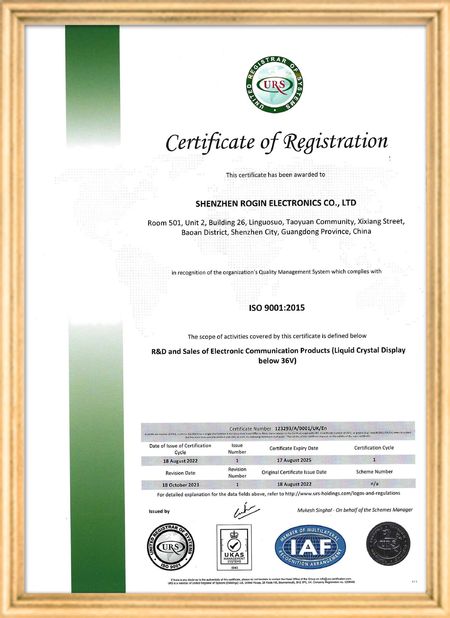
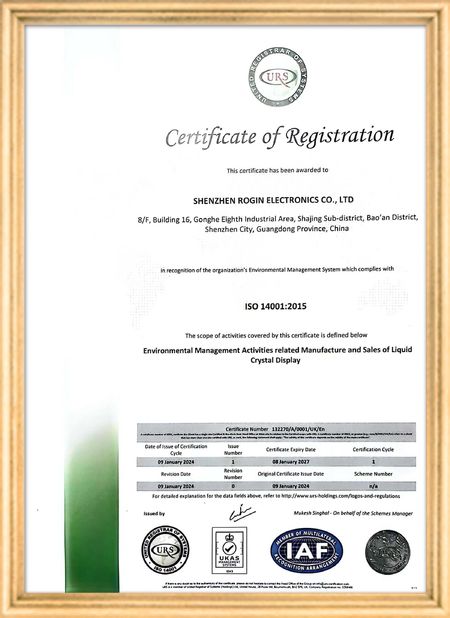
Sertifikasi
Cina Shenzhen Rogin Electronics Co., Ltd. Sertifikasi
Ulasan pelanggan
Tampilan ini bekerja dengan sempurna di trem. Kecerahan tinggi, anti silau, dan stabil bahkan di bawah getaran jangka panjang. Penumpang suka pemandangan yang jernih.

—— Kasper Sørensen

Warna akurat, respons cepat, dan startup suhu rendah normal. Sangat cocok untuk lingkungan sistem kereta api yang keras.

—— Nicole Becker

Instalasi mudah, rentang suhu lebar, dan visibilitas luar biasa di lingkungan terang. Layar ini memenuhi semua persyaratan peralatan industri kami.

—— Giovanni

Layar LCD dengan kecerahan tinggi ini sangat cocok untuk panel kontrol industri kami. Layar tetap jernih bahkan di bawah sinar matahari langsung di bengkel dan beroperasi 24/7 tanpa masalah. Kualitas kelas industri yang hebat.

—— Lukas Müller

I 'm Online Chat Now
perusahaan Blog
Guide Diagnosing Laptop LCD Failures With a Multimeter
berita perusahaan terbaru tentang Guide Diagnosing Laptop LCD Failures With a Multimeter

When your laptop screen suddenly goes dark, don't panic. A simple multimeter can help you quickly identify power supply issues. This guide simplifies the diagnostic process, enabling you to check your LCD screen's power supply and determine whether the problem lies with the screen itself or its supporting components.

Preparing Your Multimeter

Begin by setting your multimeter to measure DC voltage. Before testing, identify your screen's rated voltage—typically marked near the power connector or available in the device specifications. Modern laptop screens commonly operate between 3.3V to 19V, depending on the model.

Testing Procedure

With the laptop powered off, carefully connect the multimeter probes to the screen's power connector terminals:

  • Place the red probe on the positive (+) terminal
  • Place the black probe on the negative (-) terminal or ground

Power on the device and observe the multimeter reading. Compare this measured voltage with your screen's rated voltage.

Interpreting Results

If the reading shows significantly lower voltage than specified or no voltage at all, potential issues include:

  • Faulty power adapter
  • Damaged motherboard power circuits
  • Loose or damaged cable connections

Systematically check each component: try a different adapter, inspect motherboard connections, and reseat all cables. If voltage readings return to normal after any intervention, you've likely found your culprit.

When voltage measurements match specifications but the screen remains nonfunctional, the issue may involve the LCD panel itself, the backlight, or other screen components requiring further diagnosis.

Safety Considerations

Always disconnect power before handling internal components. When working with exposed connectors, avoid touching multiple contacts simultaneously to prevent short circuits. These basic diagnostic techniques provide valuable information for determining whether to repair or replace components.

Pub waktu : 2026-05-18 00:00:00 >> blog list
Rincian kontak
Shenzhen Rogin Electronics Co., Ltd.

Kontak Person: Mr. Kelvin Zhu

Tel: +86 15919061504

Mengirimkan permintaan Anda secara langsung kepada kami (0 / 3000)